 ► Articles








 ► Articles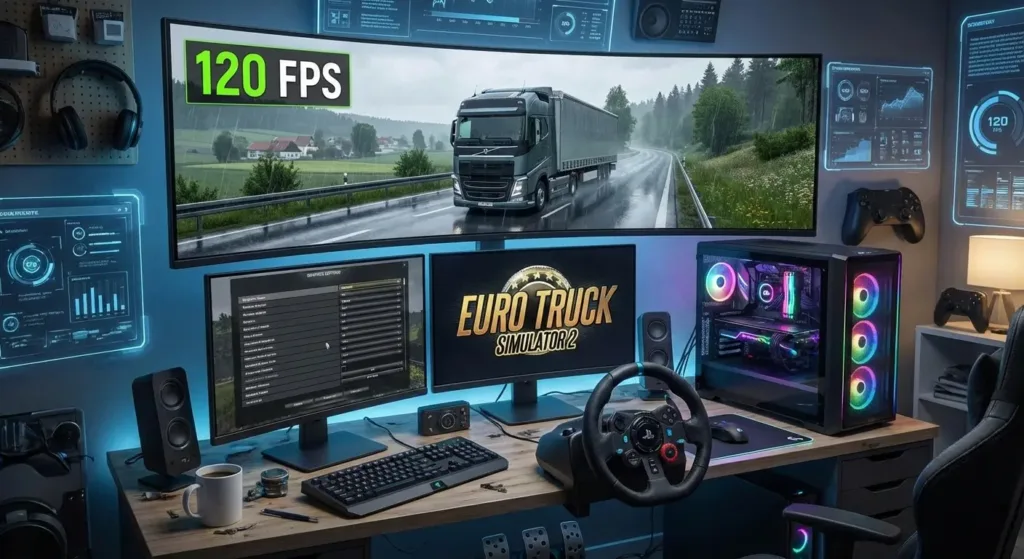

How to Increase FPS in ETS 2: The Ultimate Performance Guide
Low FPS and stuttering can ruin the immersion of even the most scenic virtual haul. This guide is dedicated to helping you effectively increase FPS in ETS 2 (and American Truck Simulator) through systematic optimization of settings, drivers, and configuration files. Follow these steps to achieve the smoothest possible gameplay.
If the game won’t launch at all after an update, first check our essential troubleshooting guide: ETS 2 Won’t Launch After Update.
Basic In-Game Settings to Boost FPS Immediately
The first step to increase performance in ETS 2 is the graphics menu. Open Settings → Graphics.
- Scaling: The #1 FPS killer. Set it to 100% (1x). Values above 200% offer minimal visual improvement for a massive performance cost.
- Visibility Distance: Heavily CPU-dependent. For a stable FPS in ETS 2, set this to “Medium” or “High”.
- Grass Detail: Set this to the lowest value. Grass detail is barely noticeable from the cabin.
- Mirrors: Limit the reflection distance and quality. Two mirrors on high settings are a significant performance drain.
For clarity, add screenshots of the settings menu with descriptive alt text like “Optimal graphics settings to increase FPS in ETS 2”.
Graphics Driver Optimization for ETS 2
Proper drivers are the foundation of stable frame rates. This is a critical step to increase FPS in ETS 2.
- Update Your Drivers: Always use the latest stable versions from official sources: NVIDIA, AMD, or Intel.
- Configure 3D Settings: In your GPU control panel (e.g., NVIDIA Control Panel), create a profile for ETS 2 and set:
- Power management mode to “Prefer maximum performance”.
- Texture filtering to “Quality” or “Performance”.
- Disable V-Sync here, managing frame limits separately.
- Clear Shader Cache: After updating drivers, delete the folder
…\Documents\Euro Truck Simulator 2\shader_cache. The game will regenerate it.
The Secret config.cfg File for Maximum FPS Gains
The most powerful method to increase FPS in ETS 2 is editing the configuration file. Locate config.cfg in your Documents\Euro Truck Simulator 2 folder. Open it in Notepad, find and change these lines:
uset r_buffer_page_size "10"  to uset r_buffer_page_size "30"
uset r_scale_y "1.0"          to uset r_scale_y "0.75"
uset r_scale_x "1.0"          to uset r_scale_x "0.75"
This lowers the internal rendering resolution, providing a massive FPS boost with a minor impact on distant quality. Save the file and set its attributes to “Read-only” to prevent the game from overwriting your changes.
Mod Management and System Cleanup
Mods are the leading cause of performance drops. For stable FPS in ETS 2, follow these rules:
- Mod Conflicts: Disable all mods. If FPS improves, enable them one by one to find the culprit. Use a proper mod manager.
- Map Mods & RAM: Large map mods (ProMods, RusMap) are RAM-hungry. Ensure you have enough (16GB+ recommended).
- Background Processes: Close unnecessary applications (browsers with many tabs, music players).
Advanced Windows 10/11 Settings for Gaming
Your OS can also throttle performance. Implement these tweaks:
- In Power Options (Control Panel → Power Options), select the “High performance” plan.
- In Windows Gaming Settings (Game Mode), consider disabling Game Mode, as it can sometimes hinder performance in simulators.
- In your GPU control panel, set a manual frame rate limit 3-4 FPS above your monitor’s refresh rate. This reduces load and heat.
Conclusion & Final Checklist
To guarantee you increase FPS in ETS 2, follow this action plan:
- Adjust in-game graphics (Scaling 100%, Visibility Medium).
- Update drivers and configure your GPU control panel.
- Edit the
config.cfgfile (change r_scale_x/y to 0.75). - Test your mods for conflicts.
- Set Windows Power Plan to “High performance”.
By executing these steps, you will achieve the maximum possible frame rate for your system, eliminating stutters and lag, and allowing you to enjoy the beauty of the virtual open road without technical distractions.
After optimizing FPS, we also recommend checking out our guide on how to choose and configure a steering wheel for ETS 2 for full immersion.






Leave a Reply