How to Fix the DirectX Error in Euro Truck Simulator 2 (2026)
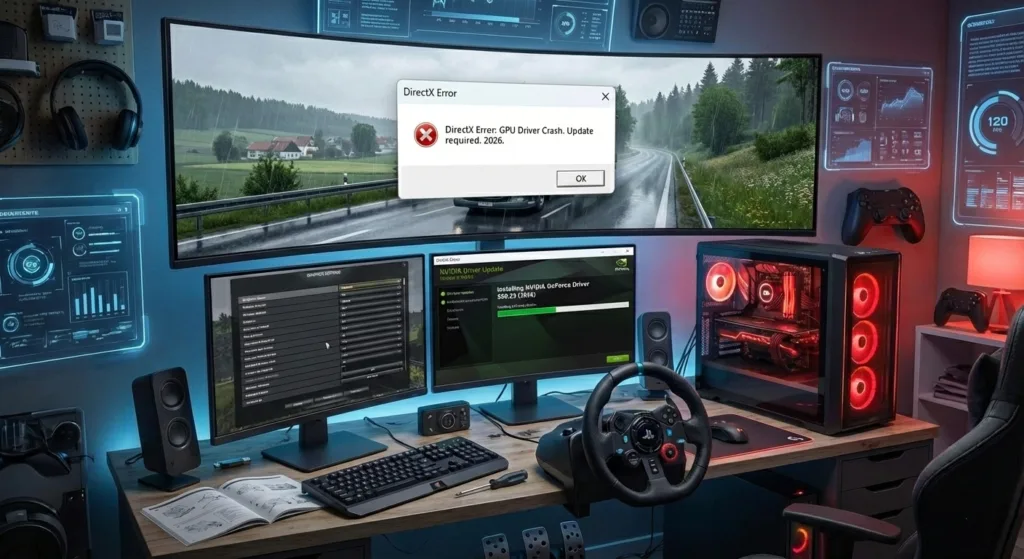
Encountering a DirectX error in Euro Truck Simulator 2 is a common crash that stops your journey dead. This error, often related to graphics drivers or corrupted system files, can be resolved with targeted fixes. This guide explains the most effective solutions to eliminate the DirectX error in ETS 2 and prevent it from returning.
If your game is crashing for other reasons, see our guide on general startup crashes in ETS 2.
Understanding the DirectX Error in ETS 2
The DirectX error in Euro Truck Simulator 2 typically appears as a crash with a message mentioning Direct3D, GPU, or a failed initialization. It means the communication between the game, your graphics driver, and Windows’ DirectX components has broken down. The fixes range from quick updates to deeper system repairs.
Useful tip: When adding screenshots of the error, include alt text like “DirectX Error message example in ETS 2” for better SEO.
Fix 1: Install the Latest DirectX End-User Runtime
ETS 2 requires specific legacy DirectX libraries. Installing the official package from Microsoft ensures all necessary files are present.
- Visit the official Microsoft DirectX End-User Runtime download page: Microsoft Download Center.
- Download and run the
dxwebsetup.exeinstaller. - Follow the prompts. The installer will check your system and add any missing DirectX components without overwriting newer versions.
- Restart your computer and test the game.
Fix 2: Update or Reinstall Graphics Drivers
Outdated or corrupted GPU drivers are the primary cause of the DirectX error in ETS 2. A clean install is best.
- Use Display Driver Uninstaller (DDU) (official DDU download from Guru3D) in Safe Mode to remove current drivers completely.
- After rebooting, install the latest WHQL-certified driver directly from your manufacturer:
- Avoid using generic Windows Update drivers for your GPU.
Fix 3: Verify Integrity of Game Files (Steam)
Corrupted or missing game files can trigger a DirectX error in Euro Truck Simulator 2.
- Open your Steam Library.
- Right-click on Euro Truck Simulator 2 and select “Properties”.
- Go to the “Installed Files” tab and click the “Verify integrity of game files…” button.
- Wait for Steam to scan and replace any problematic files, then launch the game.
Fix 4: Adjust In-Game Graphics Settings
Overly aggressive graphical settings can overwhelm your GPU’s DirectX handling. Lower these settings as a test.
- Launch the game and go to Settings → Graphics.
- Set Scaling (Resolution) to 100% (1x).
- Lower Mirror Quality and Mirror Distance to minimum.
- Change Antialiasing (AA) mode (try disabling it or switching from TAA to SMAA).
- Apply changes and see if the DirectX error in ETS 2 persists.
Fix 5: Install Critical Windows Updates
Ensure your operating system has all the latest platform updates, which include system-level fixes for DirectX and graphics.
- Press Windows Key + I to open Settings.
- Go to Windows Update and click “Check for updates”.
- Install all available updates, especially optional updates labeled as “Driver” or “Feature update”.
- Restart your PC after the updates are installed.
For older Windows 10 systems, ensure you have the latest Visual C++ Redistributables from Microsoft installed.
Final Check: Run the Game in DirectX 11 Mode
ETS 2 can sometimes default to an unstable mode. Force it to use the modern DirectX 11 API, which is more stable.
- In your Steam Library, right-click on Euro Truck Simulator 2 and select “Properties”.
- In the “LAUNCH OPTIONS” field, enter the following command:
-64bit -nointro -unlimitedlog -rdevice dx11 - Close the window. This forces the 64-bit client to start with DirectX 11.
Conclusion
The DirectX error in Euro Truck Simulator 2 is almost always solvable. Start by ensuring your system is up-to-date: run the DirectX End-User Runtime installer and perform a clean GPU driver installation using official sources. If the error continues, systematically verify game files, lower in-game settings, and force DirectX 11 mode. Following this structured approach will resolve the crash and let you return to a stable driving experience.
For more performance tweaks after fixing the error, read our guide on how to increase FPS in ETS 2.