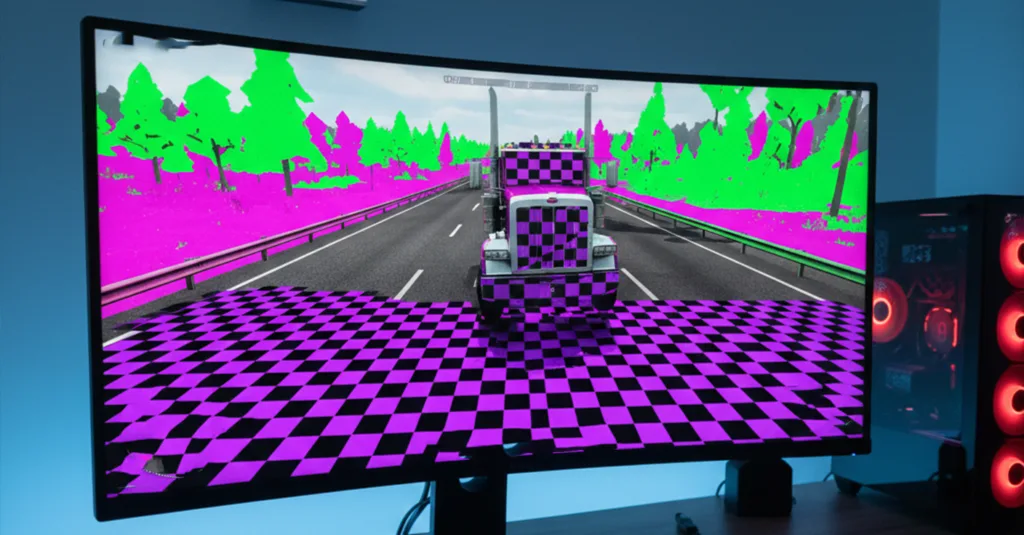
How to Fix Missing Road or Textures in Euro Truck Simulator 2
Driving on thin air? A common and immersion-breaking issue in Euro Truck Simulator 2 and American Truck Simulator is the missing textures or road bug, where the ground disappears, leaving your truck floating. This guide will help you diagnose and fix this graphical glitch, often caused by mod conflicts, memory limits, or corrupted files.
Before diving in, ensure your game runs on DirectX 11. Check our guide on fixing DirectX errors in ETS 2 if you have launch issues.
Main Cause: Mod Conflicts and Load Order
The most frequent reason for missing textures in Euro Truck Simulator 2 is an incompatible or incorrectly placed map mod. Map mods (ProMods, RusMap) and graphic overhaul mods often overwrite the same game files.
- Disable All Mods: The first diagnostic step is to disable every mod in the game’s Mod Manager. Launch a new profile without mods and drive to the area where the issue occurred. If the road is normal, a mod is the culprit.
- Check Mod Load Order: If you must use mods, their order is critical. General rule:
- Map mods (ProMods definition files) go ABOVE the actual map files.
- Compatibility patches must be placed AFTER the mods they are patching.
- Traffic and physics mods should be near the top.
- Always follow the mod author’s specific load order instructions.
Useful tip: Take a screenshot of your mod manager with the correct order and use alt text like “Correct ETS 2 mod load order to prevent missing textures”.
Fix 1: Increase Your Game’s Memory Limits
The missing road in ETS 2 can be a sign that the game has run out of available VRAM (Video RAM) or that the memory buffer is too small.
- Edit config.cfg: Navigate to
Documents\Euro Truck Simulator 2\config.cfg. Open it with Notepad. - Find the line:
uset r_buffer_page_size "10". - Change the value from “10” to “30” or “50”. This allocates more memory for textures. Example:
uset r_buffer_page_size "30" - Save the file and set it to “Read-only” (Right-click > Properties > Read-only). This prevents the game from resetting it.
Fix 2: Verify Integrity of Game Files on Steam
Corrupted base game files can lead to textures not loading in ATS or ETS 2. Steam can repair them.
- Open Steam, go to your Library.
- Right-click on Euro Truck Simulator 2 and select “Properties”.
- Go to the “Installed Files” tab and click “Verify integrity of game files…”.
- Wait for the process to complete. Steam will download any missing or corrupted files.
Fix 3: Lower Your Graphics Settings (VRAM Issue)
If your graphics card’s VRAM is fully utilized, textures will fail to load, causing the disappearing ground in ETS 2.
- Open the game’s Graphics Settings.
- Lower the Texture Quality (High or Medium instead of Ultra).
- Reduce Scaling to 100% or 125%.
- Turn off HDR and lower Mirror Quality.
- Check the VRAM usage bar at the bottom of the settings window. Ensure you are well below the limit.
Fix 4: Update Your Graphics Drivers
Outdated GPU drivers can cause various rendering bugs, including missing textures in Euro Truck Simulator 2.
- Perform a clean driver installation using Display Driver Uninstaller (DDU) from its official website.
- After using DDU in Safe Mode, install the latest stable driver for your card:
Fix 5: Clear the Game’s Shader Cache
A corrupted shader cache can lead to objects and roads not rendering correctly.
- Navigate to:
Documents\Euro Truck Simulator 2. - Delete the folder named
shader_cache. - Also, check and delete the shader cache in:
Steam\steamapps\common\Euro Truck Simulator 2if it exists. - The game will rebuild the cache on the next launch, which may take a few minutes.
Conclusion
To permanently fix missing textures or the road in Euro Truck Simulator 2, follow this action plan: First, disable all mods to isolate the cause. Then, increase the memory buffer in config.cfg and verify your game files on Steam. Finally, ensure your graphics drivers are up-to-date and your VRAM is not overloaded by adjusting in-game settings. By systematically addressing these areas, you will restore the world around your truck and enjoy a seamless driving experience.
For further performance optimization after fixing textures, read our guide on how to increase FPS in ETS 2.