 ► Articles








 ► Articles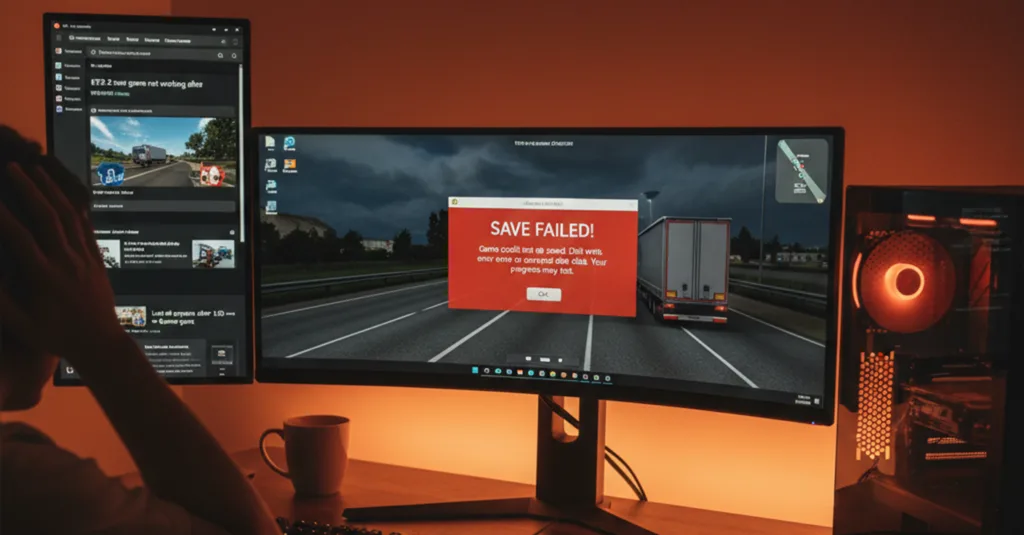

Save Game Not Working in Euro Truck Simulator 2? Here’s the Fix
Discovering that your hard-earned progress in Euro Truck Simulator 2 or American Truck Simulator hasn’t been saved is incredibly frustrating. The save game not working issue can stem from write permissions, Steam Cloud conflicts, or a corrupted profile. This guide provides a clear, step-by-step solution to secure your progress and prevent future losses.
If you’re also experiencing crashes that might interrupt saving, check our guide on fixing DirectX errors in ETS 2 first.
Primary Fix: Check File and Folder Permissions
The most common reason for save game issues in ETS 2 is that the game cannot write to the “Documents” folder due to restrictive permissions.
- Navigate to your profile folder:
Documents\Euro Truck Simulator 2\profiles. - Right-click the entire “Euro Truck Simulator 2” folder (in Documents) and select “Properties”.
- Go to the “Security” tab. Click on your user account and ensure you have “Full control” or at least “Write” permissions.
- If unsure, click “Edit…” and grant your user “Full control”. Apply changes to all subfolders.
Tip: A screenshot of the correct permissions with alt text “Correct folder permissions for ETS 2 save games” can be helpful for visual learners.
Fix 1: Manage Steam Cloud Synchronization
A conflict between local saves and Steam Cloud can cause the save game not working error.
- Open Steam, go to Library.
- Right-click Euro Truck Simulator 2 and select “Properties”.
- In the “General” tab, find the “STEAM CLOUD” section.
- Try disabling the option “Keep game saves in the Steam Cloud for Euro Truck Simulator 2”.
- Click OK and launch the game. Create a test save (e.g., quick travel). Exit and check if it persists.
- If it works, re-enable Cloud and let Steam sync. Sometimes this resets the conflict.
Fix 2: Verify the Integrity of Game Files
Corrupted game files can break the save/load function. Use Steam’s built-in tool.
- In your Steam Library, right-click on Euro Truck Simulator 2 > “Properties”.
- Go to the “Installed Files” tab.
- Click the “Verify integrity of game files…” button.
- Wait for the scan to complete and let Steam replace any bad files.
Fix 3: Create a New Test Profile
This determines if the problem is with your specific profile or the game overall.
- Launch ETS 2/ATS and enter the Profile Selection screen.
- Create a brand new profile (you can skip the tutorial).
- Play for a few minutes, make a clear change (buy a cheap upgrade, change cabin color), and manually save.
- Exit the game completely and restart it. Load the new profile.
- If the new profile saves correctly, your original profile is likely corrupted.
Fix 4: Restore from a Profile Backup
ETS 2/ATS automatically creates backup saves. You can restore one if your main save is corrupted.
- Navigate to
Documents\Euro Truck Simulator 2\profiles\[Your Profile ID]. - You will see files like
save\save.atsandsave\save_backup.ats(or .ets2). - Rename the main save file (e.g.,
save.atstosave.ats.corrupt). - Rename the backup file (
save_backup.ats) to the main name (save.ats). - Launch the game. You will lose a small amount of progress (since the backup is older) but recover most of it.
Fix 5: Run the Game as Administrator
This ensures the game has maximum system rights to write files, which can resolve save game not working in Euro Truck Simulator 2.
- Find the game’s shortcut or .exe file (e.g.,
eurotrucks2.exe). - Right-click it and select “Properties”.
- Go to the “Compatibility” tab.
- Check the box: “Run this program as an administrator”.
- Click “Apply” and “OK”. Always launch the game from this shortcut.
Preventative Measures for the Future
To avoid future save game issues in ETS 2, adopt these habits:
- Manual Backups: Periodically copy your entire
profilesfolder to a safe location (e.g., external drive, cloud storage). - Close Properly: Always exit to the main menu and quit the game via the menu, don’t force-close it with Alt+F4.
- Mod Caution: Some mods can corrupt saves. Test new mods on a separate profile first. Read our guide on avoiding mod conflicts.
Conclusion
When your save game is not working in Euro Truck Simulator 2, start by checking the folder permissions in Documents and managing Steam Cloud sync. If the issue persists, verify game files and test with a new profile. For corrupted saves, use the built-in backup file to restore most of your progress. Following this structured approach will recover your save data and implement safeguards to keep your future journeys secure.
After securing your saves, ensure smooth gameplay by optimizing performance. Learn how to increase FPS in ETS 2.








Leave a Reply